Manage a User's Role in Identity Server
To manage a user A person with the capability to log in to the CMP GUI software, such as a customer service advisor or agent. and their roles, follow these steps:
-
Log in to the Identity Server Management Console.
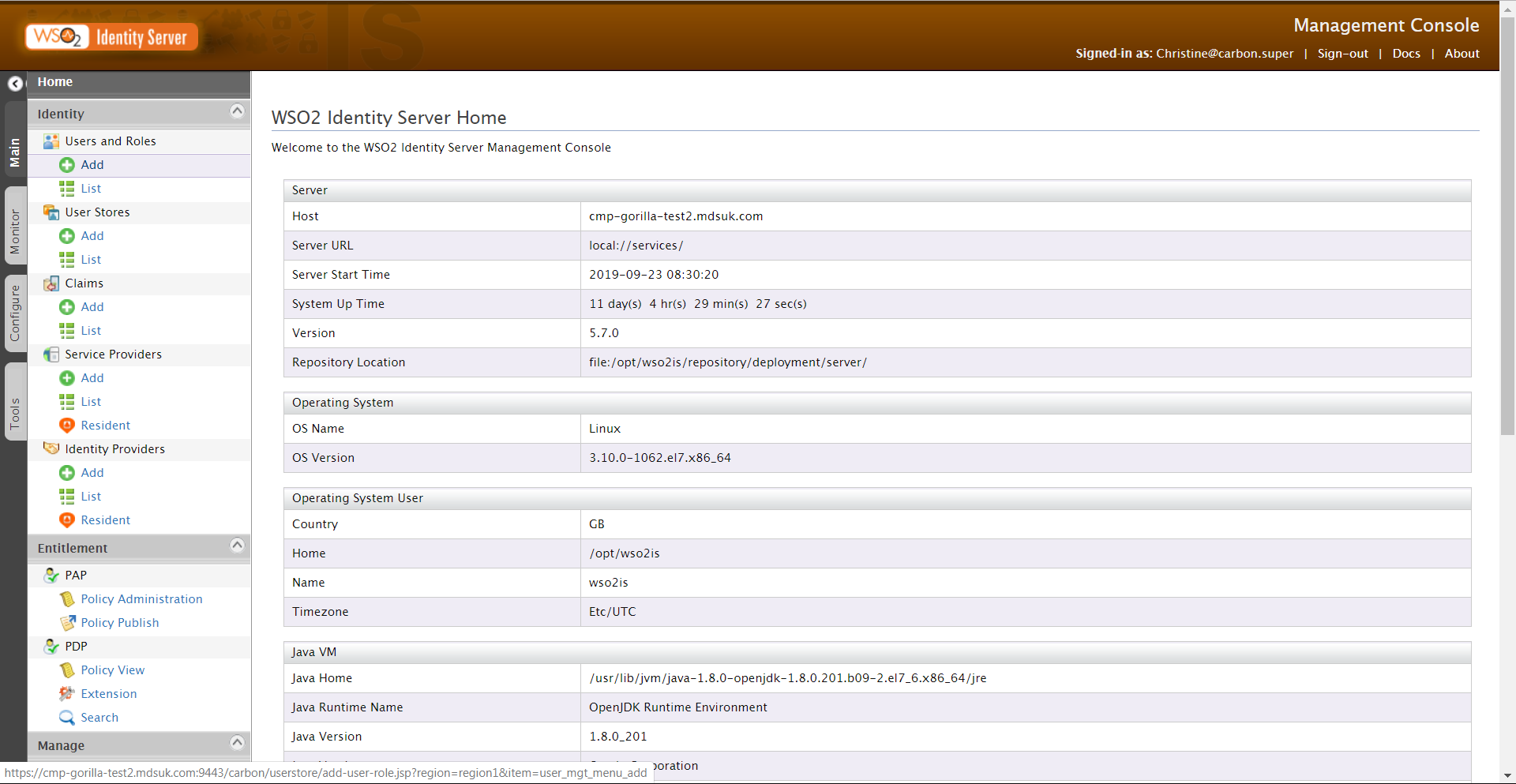
The console opens on the Home page. By default, the Main menu tab is selected.
-
In the Main menu in the Identity section, under Users and Roles, click List.
The Users and Roles screen opens.
- Click Users
-
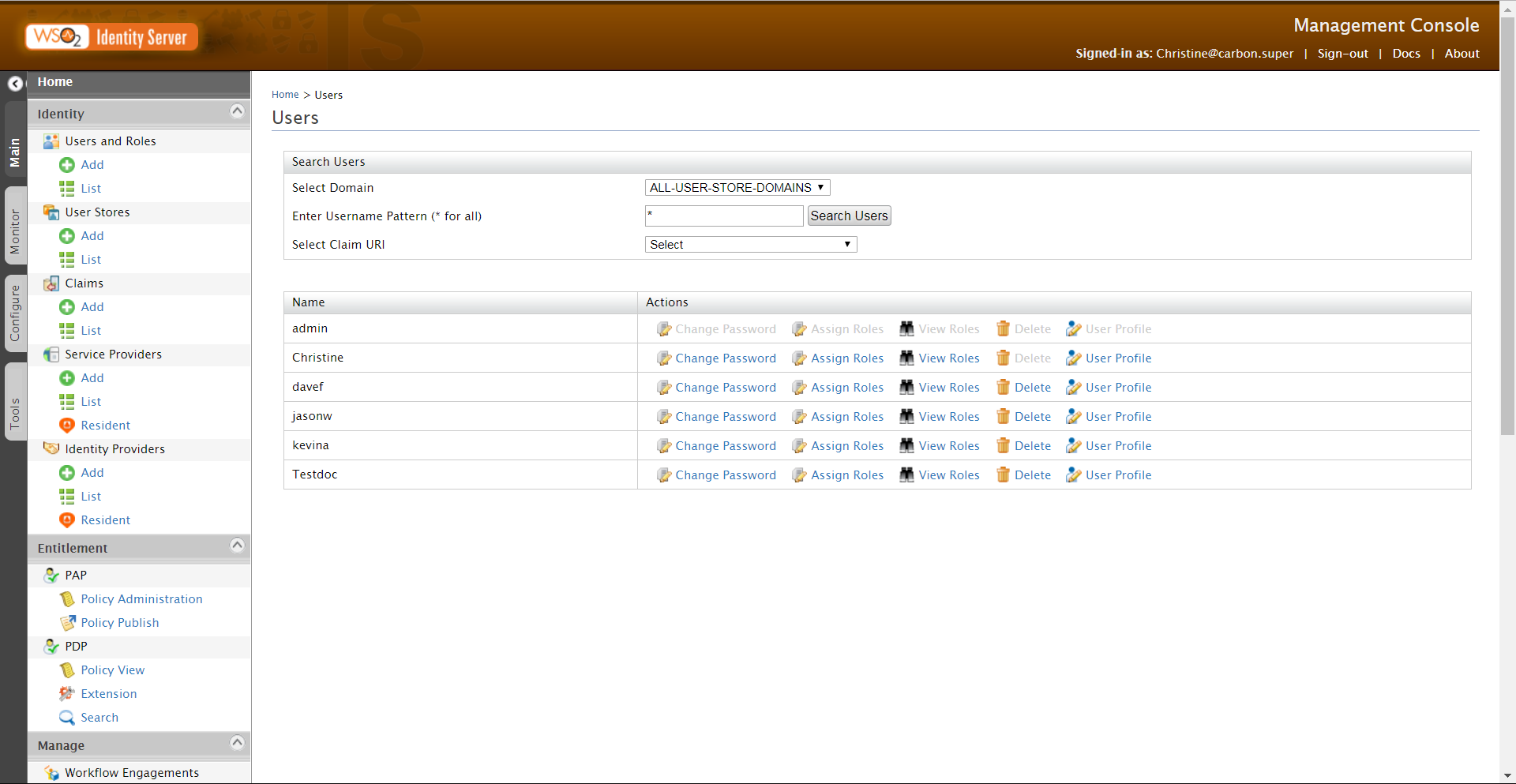
The Users screen is displayed.
-
Manage a user and their roles as follows:
To change a password: - Click Change Password
 for that user.
 - In the Change Password screen, enter the Current Password.
- Enter the New Password and Confirm New Password.
- Click Change.
To assign roles: -
Click Assign Roles
 for that user.
- Select the roles to assign.
- Click Update to update the user and remain in the screen.
- Or, click Finish to update the user and return to the Users screen.
To view/unassign roles for the user: -
Click View Roles
 for that user.
The Role List of User <Name> screen displays all assigned roles.
- Deselect roles to unassign them.
- Click Update to update the user and remain in the screen.
- Or, click Finish to update the user and return to the Users screen.
To delete a user: - Click Delete
 for that user.
 - Click Yes in the Confirmation box.
- Click Change Password
Important: The Identity Server Management Console has many other menu options and screens. Only Administrators who understand the impact of their actions should access and use them.